

Return to previous page
Vivicon
Try out the features and enjoy the attention of your audience while performing.
Put Vivicon to the test and experience its full potential
Try out the features and enjoy the attention of your audience while performing.
FUNCTIONS
- Import .pptx and .pdf presentations (with notes)
- Insert and use interactive slide types
- Presenter view with helpful tools (e.g., how many have answered a slide, how many joined the presentation) alongside the regular presentation view
- Participant view where the audience can react, answer, vote, and take notes
- Share presentations easily
- Download results from interactive slides
- Multiple log in or account registration option
- Anonymous participant access
- Join presentations from personal devices
What interactive elements can you choose from?
Poll
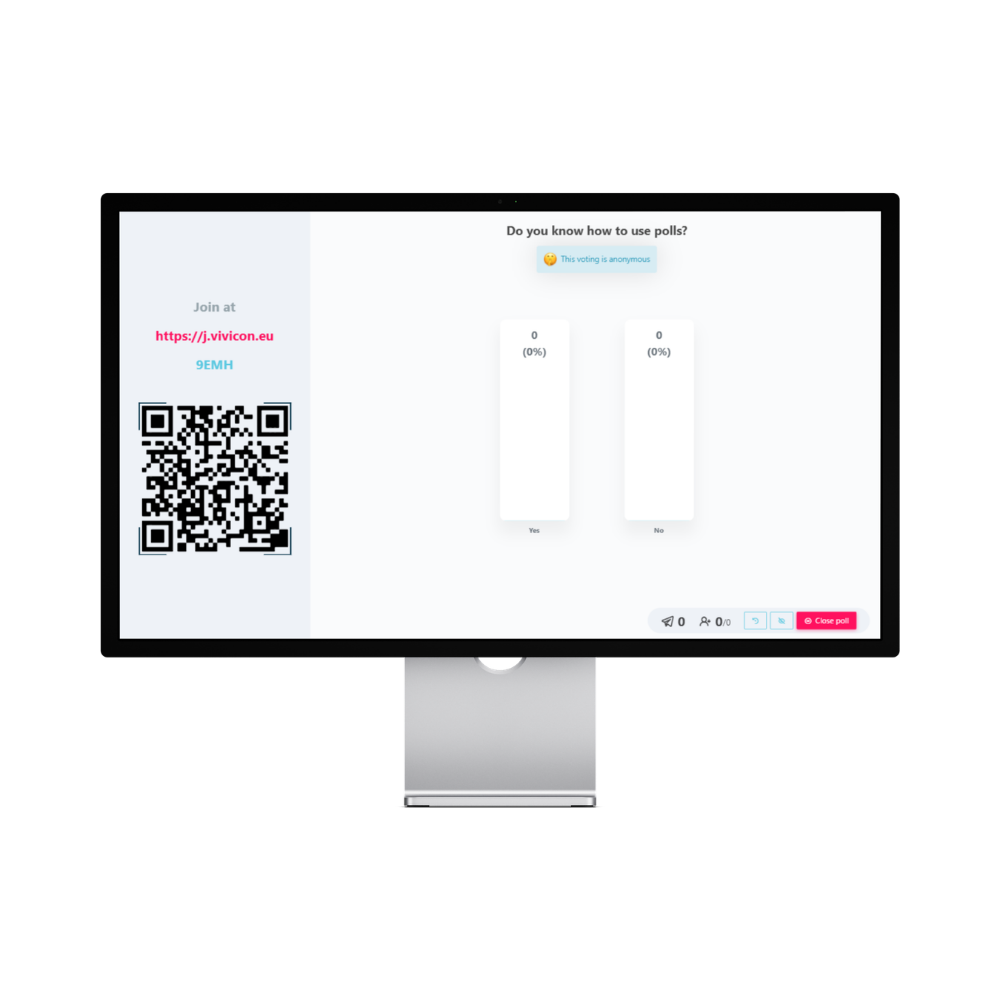
A perfect tool for assessing knowledge levels or asking introductory questions. Participants can choose one or more options from the choices you provide. By setting correct answers and evaluating responses, you can even create a leaderboard, adding a gamified element to your presentation. Questions and answer options can also be generated by AI based on a topic you provide or the text content of your slides.
Open-ended question
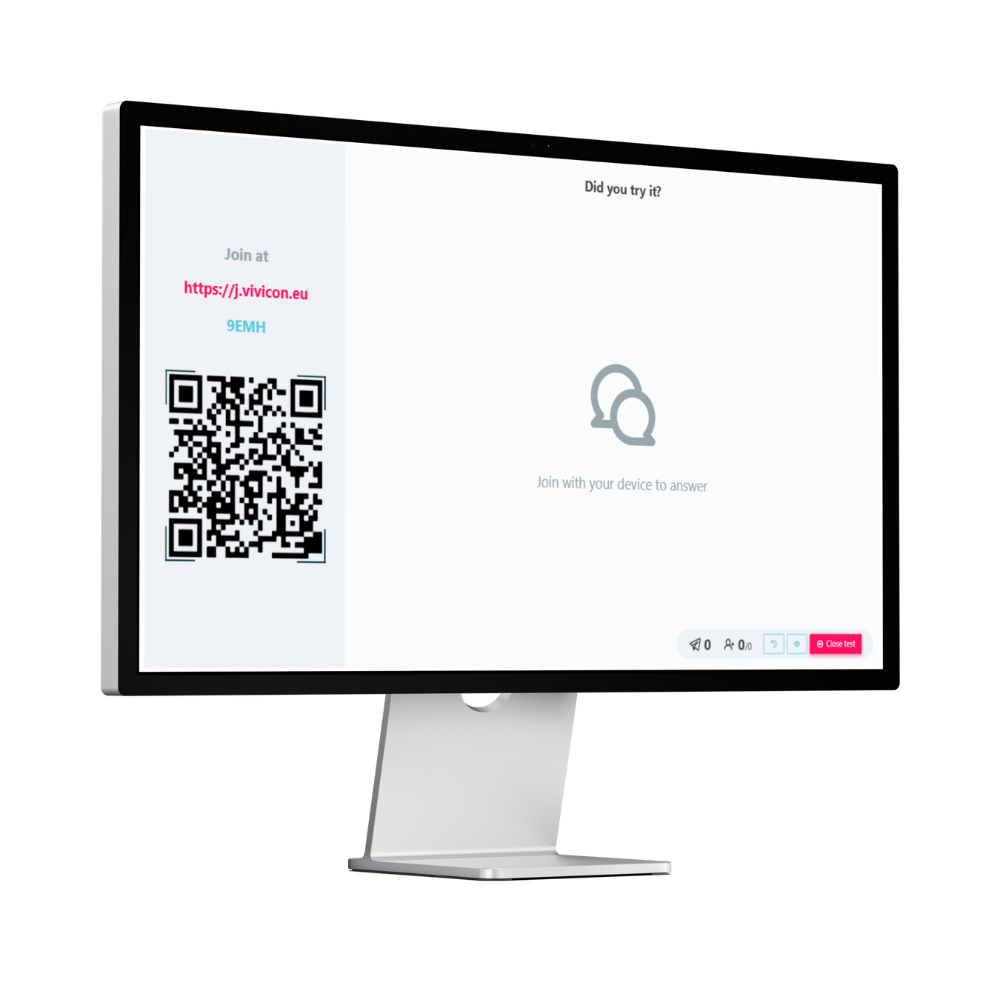
A great choice when you want to give your audience the freedom to respond in their own words.
Word cloud
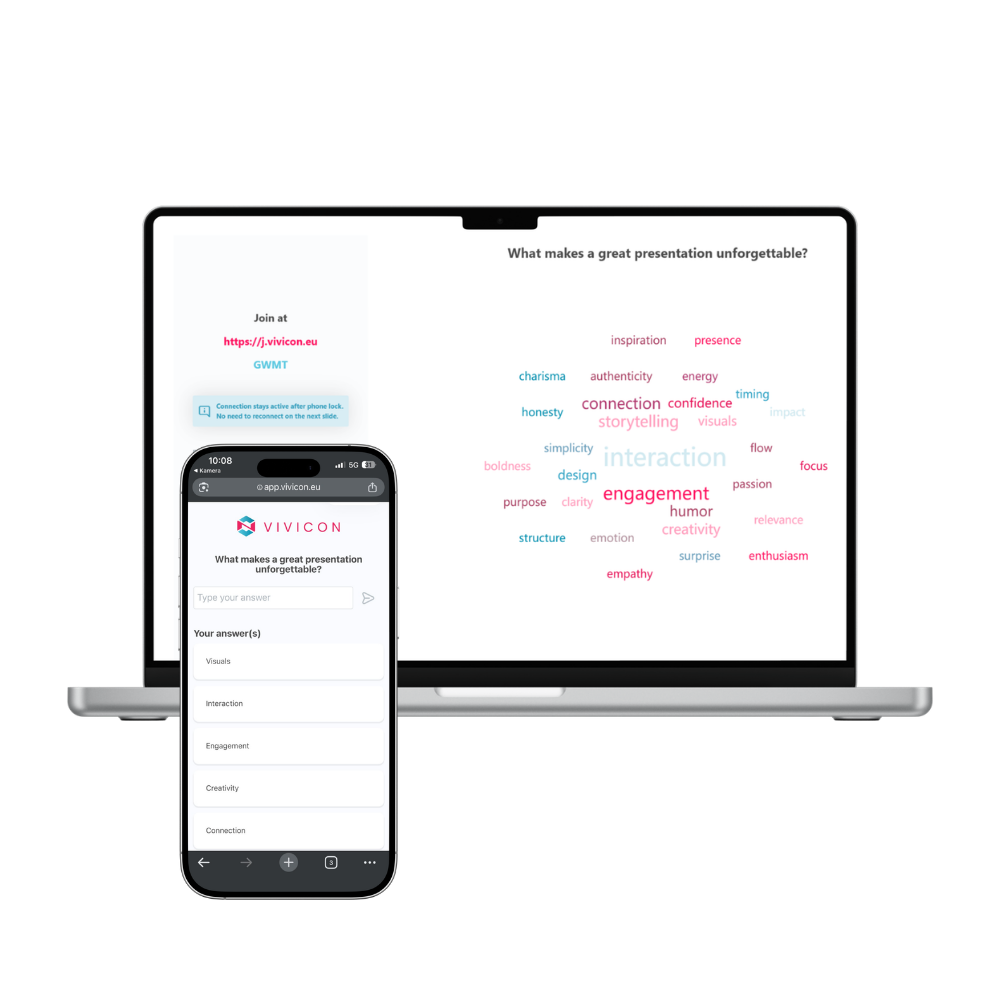
Participants’ answers come to life in a dynamically updating Word cloud, where shared ideas are displayed in a visually striking way.
Pros and cons
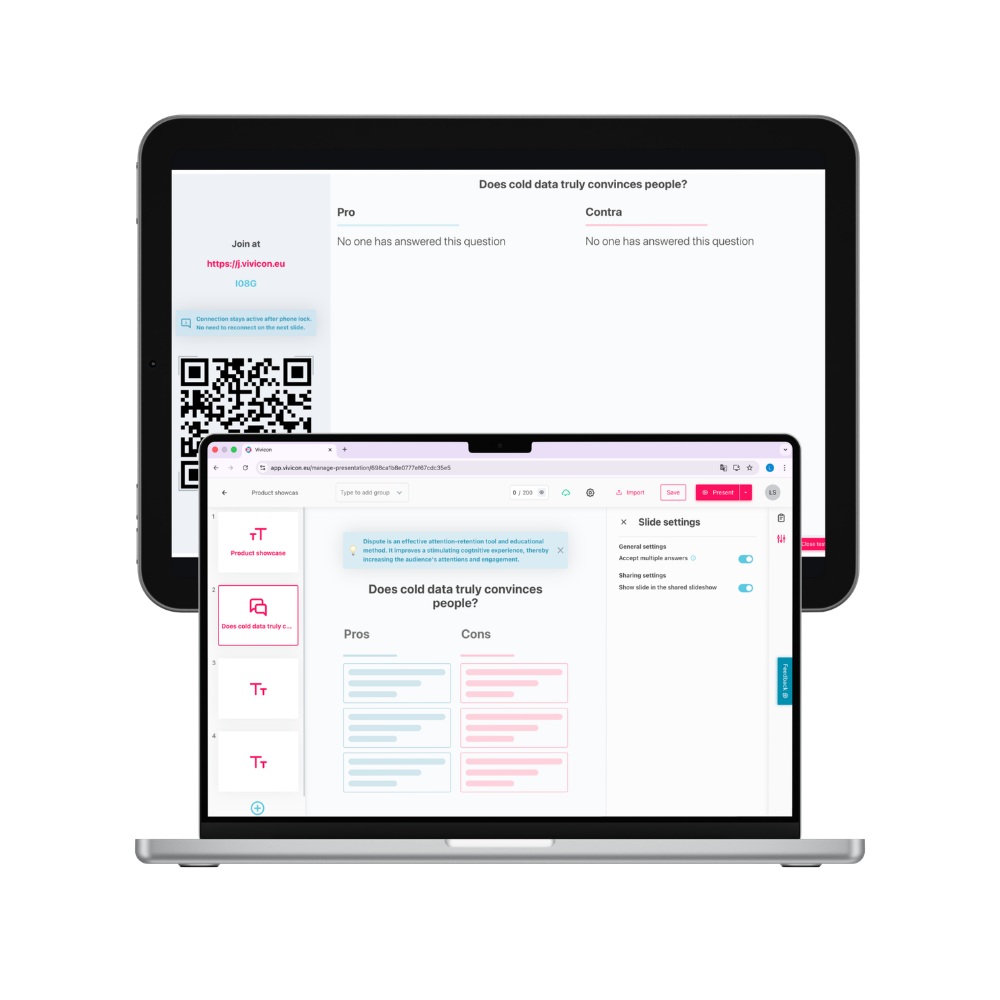
Start a debate or collaborative discussion by having your audience collect pros and cons on a topic you provide.
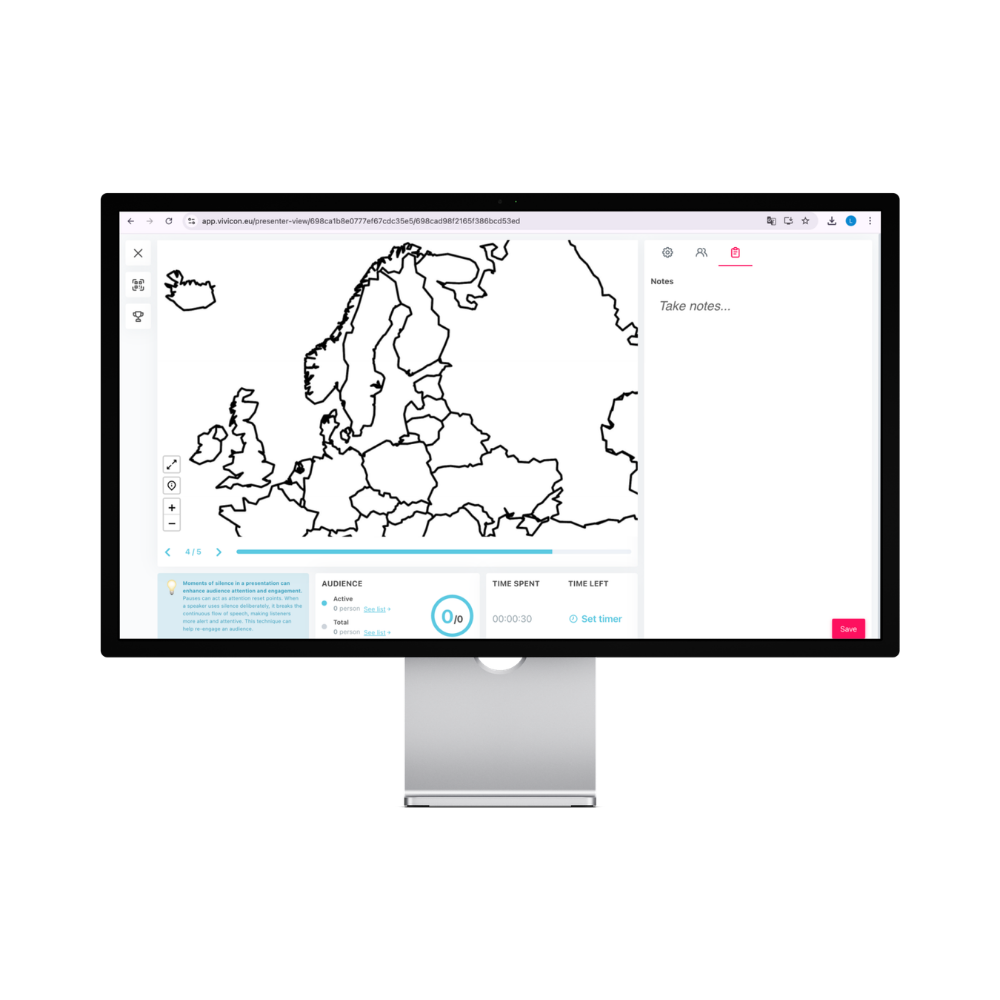
Interactive image
Supports visual learning: the presenter can pre-mark key points – such as on microbiology reports or maps – and then test the audience’s understanding with quiz tasks.
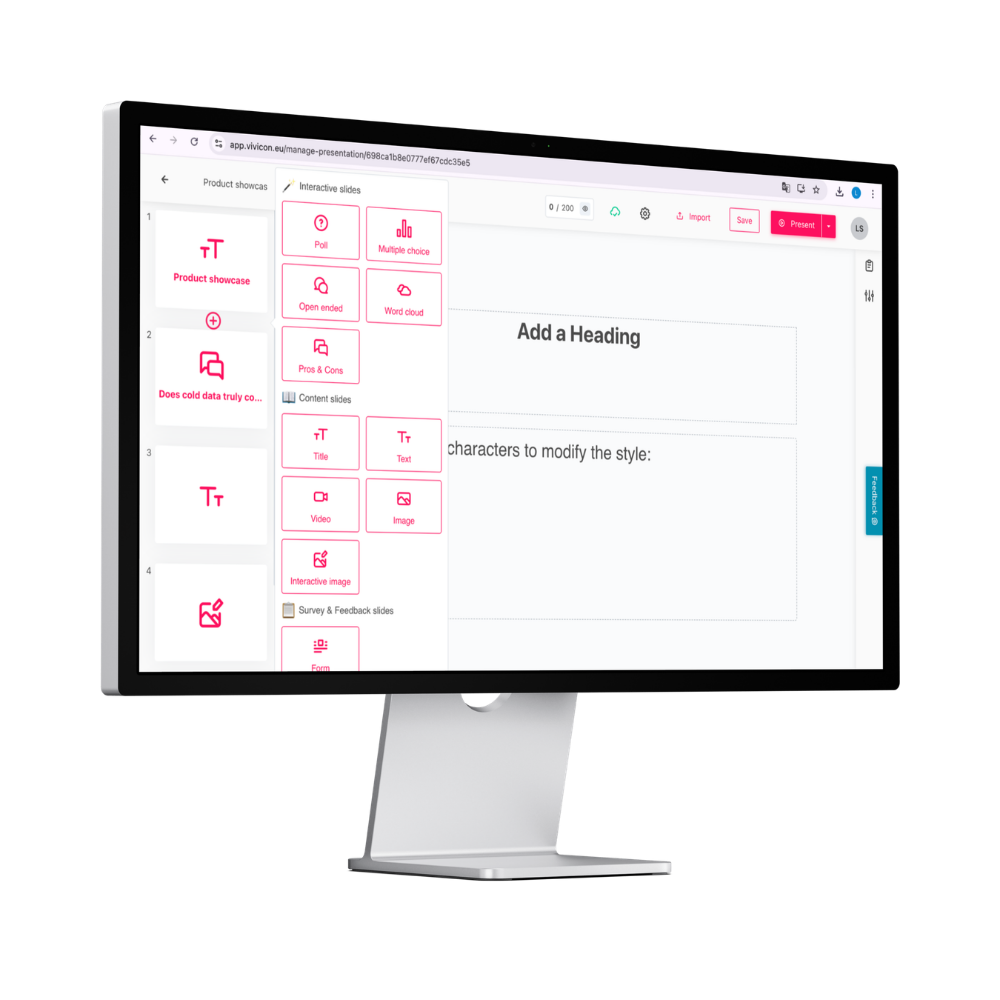
How to add interactive elements to your existing presentation:
- Upload your presentation to the
- While editing your slides, click the “+” icon that appears between two slides and choose an interactive element.
- Enter the slide’s question and answer options (if applicable), along with any settings you want to apply.
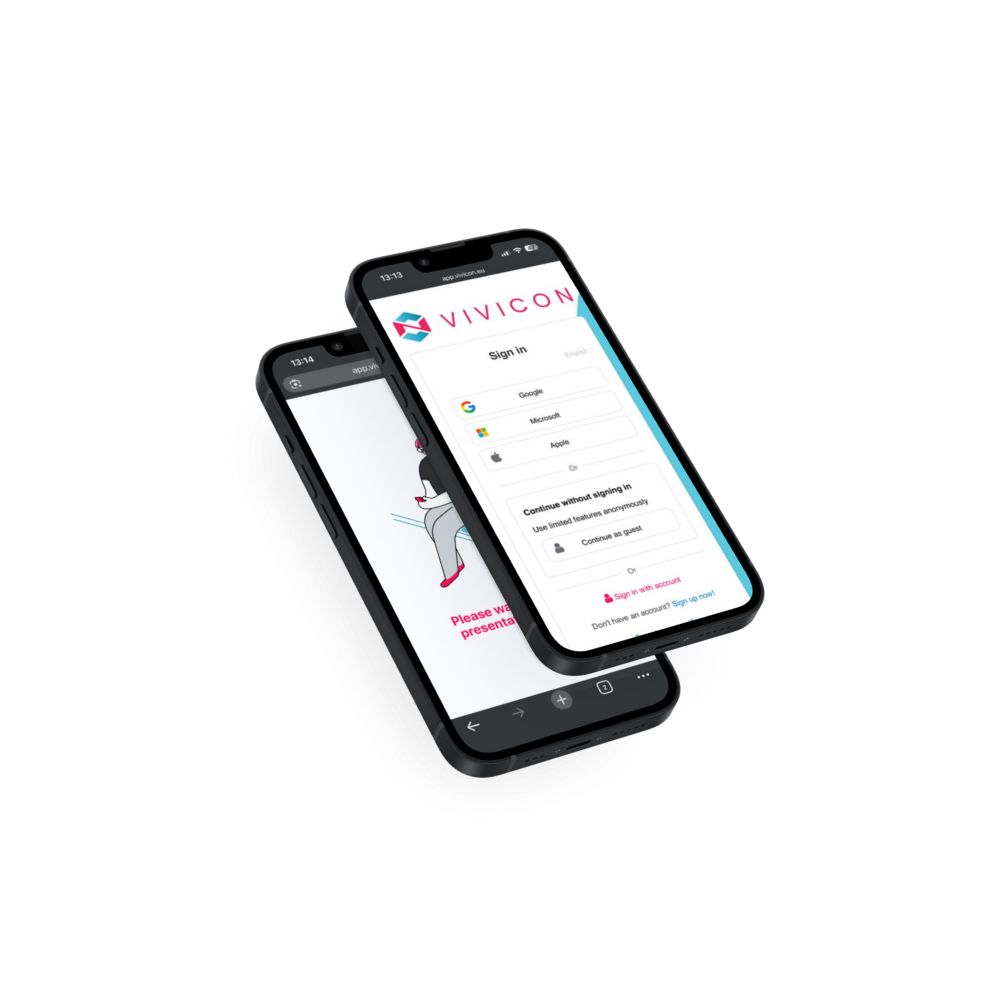
How to sign in or join:
Users can sign in to the system as either presenters or participants using Google, Microsoft, Apple ID, or a registered Vivicon account. Presenters can also allow anonymous participation, so responses are not linked to individual identities.
Vivicon aligns perfectly with the current BYOD trend, enabling audience members to answer questions and complete interactive tasks using their own devices during presentations.
Participants can join the presentation via QR code, link, or access code.

Poll
A perfect tool for assessing knowledge levels or asking introductory questions. Participants can choose one or more options from the choices you provide. By setting correct answers and evaluating responses, you can even create a leaderboard, adding a gamified element to your presentation. Questions and answer options can also be generated by AI based on a topic you provide or the text content of your slides.
Open ended question

A great choice when you want to give your audience the freedom to respond in their own words.

Word cloud
Participants’ answers come to life in a dynamically updating Word cloud, where shared ideas are displayed in a visually striking way.
Pros and cons

Start a debate or collaborative discussion by having your audience collect pros and cons on a topic you provide.

Interactive image
Supports visual learning: the presenter can pre-mark key points – such as on microbiology reports or maps – and then test the audience’s understanding with quiz tasks.
How to add interactive elements to your existing presentation:
- Upload your presentation on Vivicon’s homepage or in the editor interface!
- While editing your slides, click the “+” icon that appears between two slides and choose an interactive element.
- Enter the slide’s question and answer options (if applicable), along with any settings you want to apply.

How to sign in or join:
Users can sign in to the system as either presenters or participants using Google, Microsoft, Apple ID, or a registered Vivicon account. Presenters can also allow anonymous participation, so responses are not linked to individual identities.
Vivicon aligns perfectly with the current BYOD trend, enabling audience members to answer questions and complete interactive tasks using their own devices during presentations.
Participants can join the presentation via QR code, or link and access code.
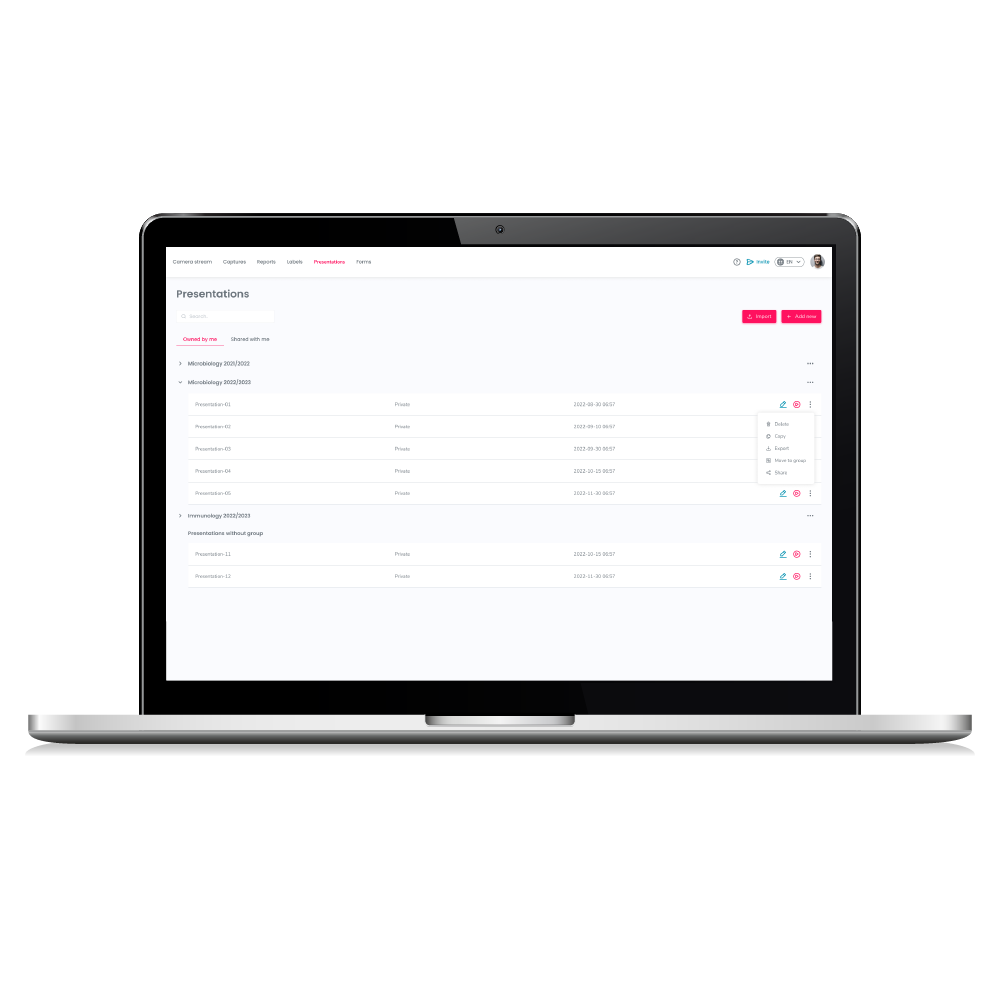
Uploading and storing a presentation
Upload your Power Point presentation and use it anytime from the online platform.

How to create unique and recallable presentation slides?
PowerPoint presentations have become part of our everyday life in recent years. We have already written about how to create an interactive presentation in a…

Preparation of an interactive presentation in steps
Nowadays, we are expected to listen to or present lots of presentations at conferences, in university classes or at work meetings. To avoid boring presentations…

Basics of storytelling – what it means, its role in presentations
Appealing to the emotions of the audience during a presentation is often a challenge even for experienced presenters. In such cases, it is recommended to…
Discover the features and benefits of Vivicon
Would you like to learn more about our software? Try it now for free. All you need is a Google, Microsoft, Apple ID, or registered Vivicon account.
Discover the features and benefits of Vivicon
Would you like to learn more about our software? Try it now for free. All you need is a Google or Microsoft account.