

Getting started

1. First steps
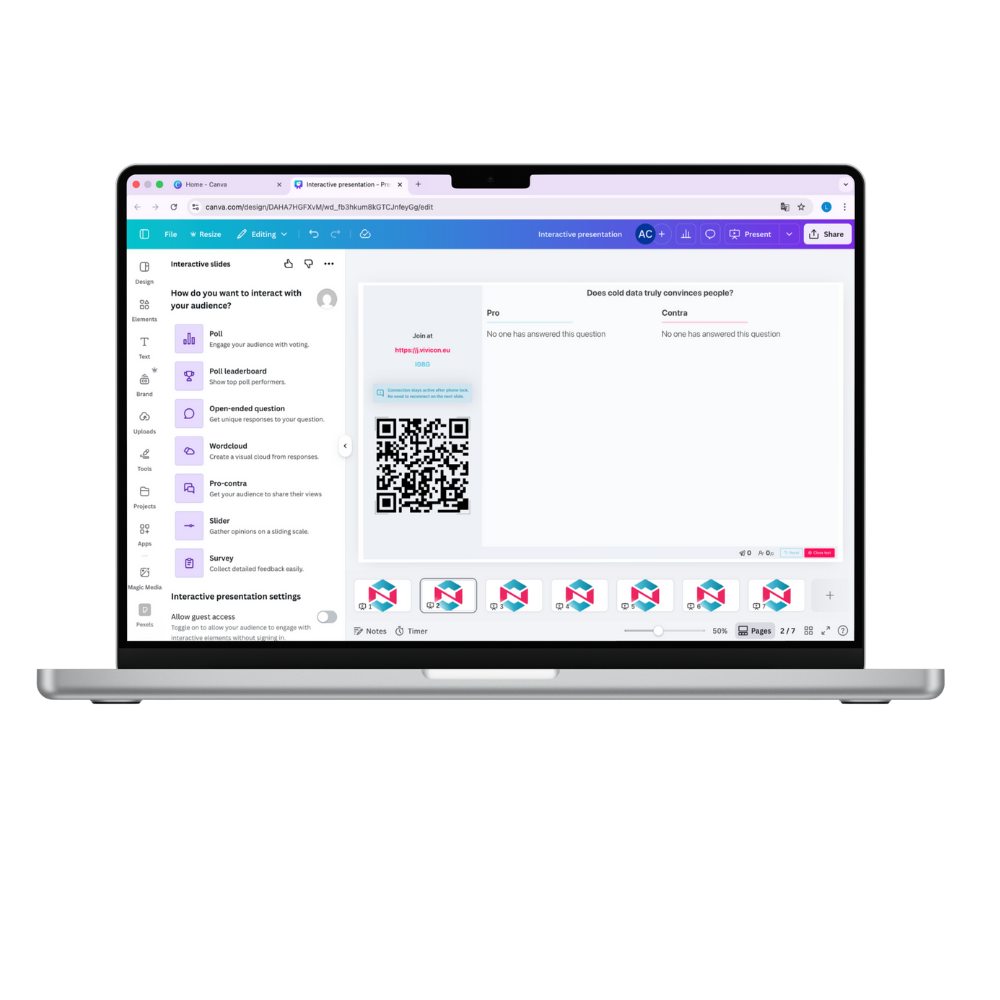
Whether you’re a teacher, presenter, trainer or content creator, Interactive Slides can help you involve your audience directly in your presentation.
- Open Canva and navigate to the Apps section.
- Search for Interactive Slides and open the app in a new or existing design.
- Select the type of interactive element you would like to add.
- Set up your interactive element.
- Add it to your design.
You can try the Interactive Slides app without signing in.
Connecting your Vivicon account gives you access to additional features.
2. Connecting your Vivicon account
You can use Interactive Slides without logging in, but connecting your Vivicon account gives you access to more features, including Slider, Guess the number, Survey and result downloads.
Connecting your account:
- Open the account menu in the Interactive Slides app.
- Select Connect.
- Choose the sign-in method that is most convenient for you:
- Microsoft
- Apple
- Sign in with account
- Follow the instructions to complete the connection.
Make sure you connect your Vivicon account to the same Canva account you use with Interactive Slides.
This helps ensure that your subscription, available features, usage limits and results are correctly recognized when you use the app in Canva.
Using a different Canva account may prevent you from accessing everything included with your Vivicon account.
3. Understanding your plan and usage limits
Interactive Slides offer different usage limits and features depending on your Vivicon plan.
You don’t need to memorize your limits before you start.
The app helps you keep track of your usage and lets you know when you reach a limit.
Depending on your plan, the following limits may apply:
Participants per year:
The maximum number of participants who can join your Interactive Slides presentations over the course of one year.
Participants per presentation:
The maximum number of participants who can join a single presentation.
Interactive slides per presentation:
The maximum number of interactive slides you can add to one Canva presentation.
AI Poll generations:
The number of Polls you can generate with AI within a presentation may depend on your plan.
Additional features:
Features such as Access results and the Custom style setting are only available with an active Vivicon subscription.
What happens when I reach a limit?
If you reach one of the limits included in your current plan, the app will let you know.
Depending on the limit, you may not be able to:
- allow additional participants to join during the subscription period,
- allow more participants to join a specific presentation,
- add another interactive slide to your presentation,
- or generate another Poll with AI.
If a feature is not included in your current subscription, you may also be prompted to upgrade your plan to access it.
Where can I check my usage?
Your current usage is displayed directly at the bottom of the Interactive Slides app’s main interface.
Here you can quickly check your usage while creating your presentation, without opening a separate section.
💡 Tip: If you’re preparing a presentation for a larger audience, check your participant usage and plan limits before the session starts.
4. Choosing the right interactive slide
Not sure which interactive slide to use? Start with what you want your audience to do.
| If you want your audience to… | Use |
|---|---|
| Choose between predefined answers | Poll |
| Answer a question with a correct solution | Poll with correct answer(s) set |
| Compete based on correct Poll answers | Poll leaderboard |
| Explain an opinion in their own words | Open-ended question |
| Share short ideas or associations | Wordcloud |
| Discuss two opposing sides of a topic | Pro-contra |
| Rate something on a scale | Slider |
| Estimate or guess a numerical value | Guess the number |
| Complete a structured questionnaire | Survey |