Presenting and collecting responses

1. Presenting with Vivicon Interactive Slides
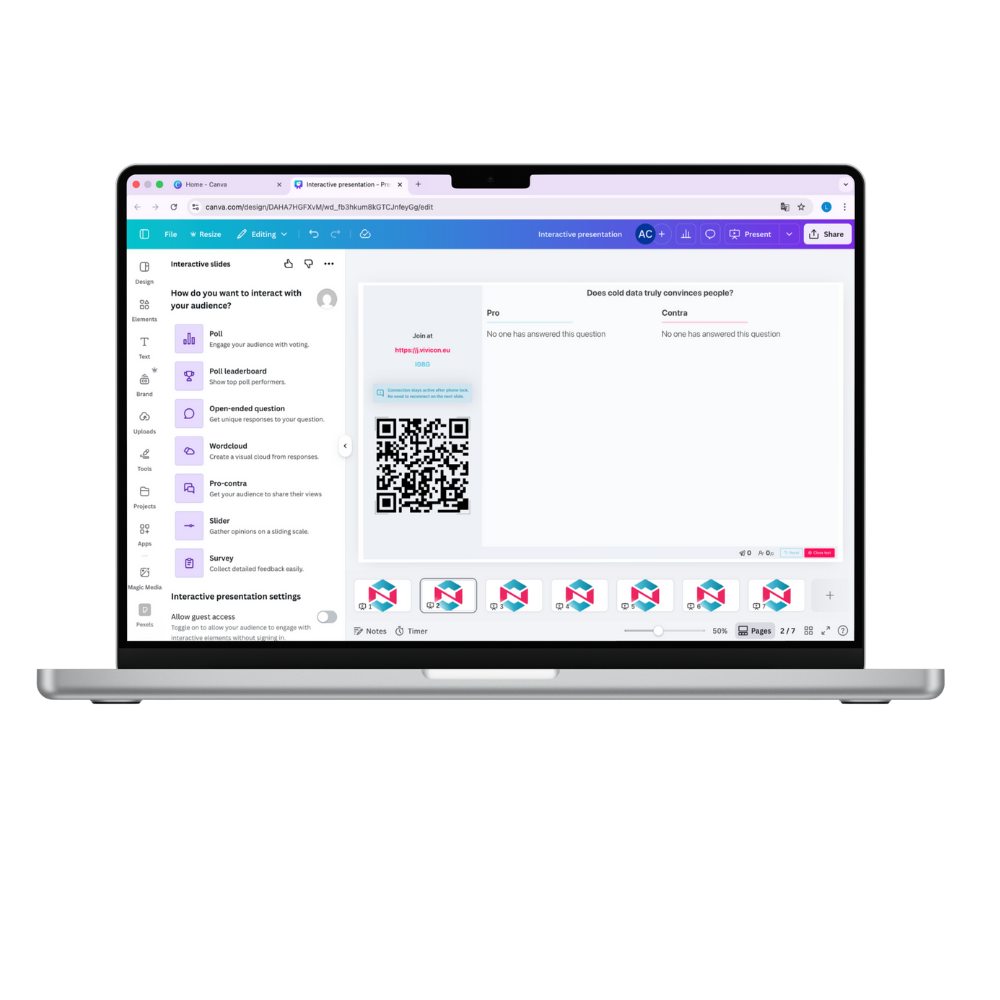
When you’re ready to present your Canva design, you can manage your interactive slides directly during your presentation.
1.1. Start your Presentation
- Start your Canva presentation as you normally would.
- Navigate through your slides until you reach a slide containing a Vivicon interactive slide.
1.2. Let your audience join
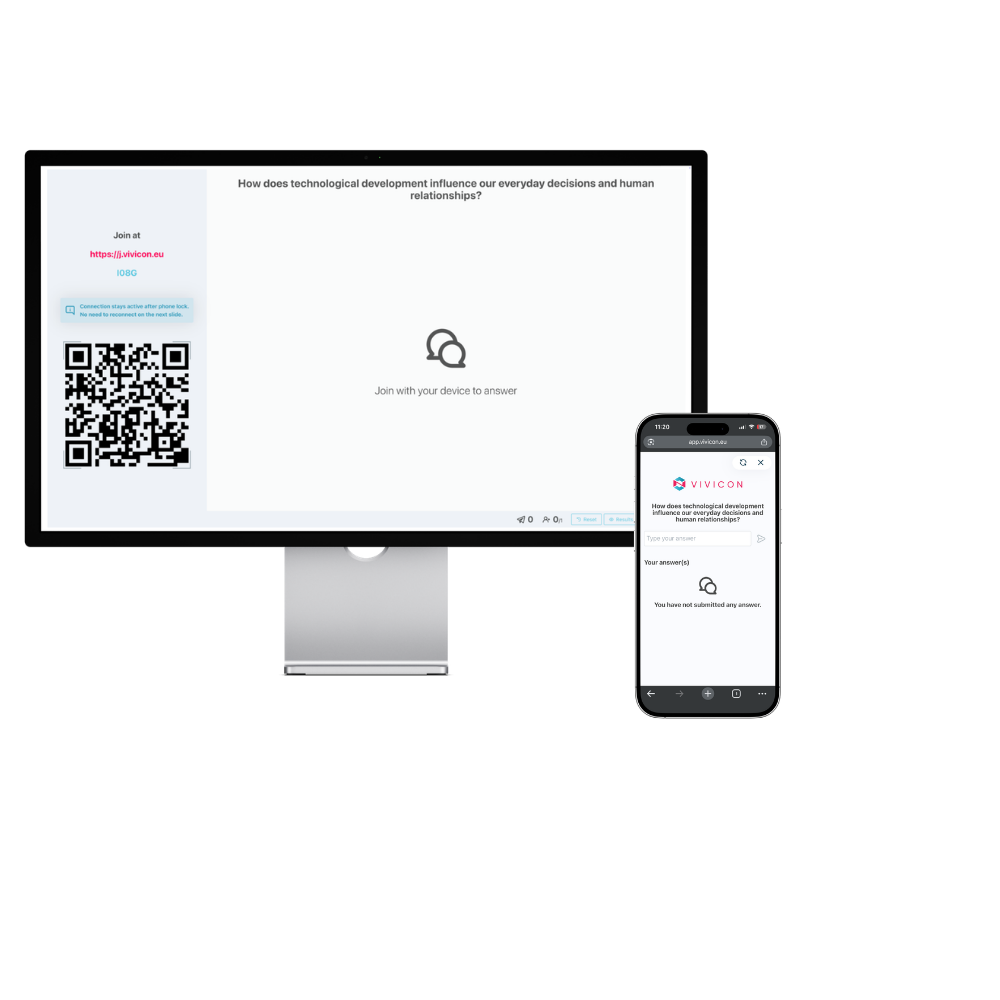
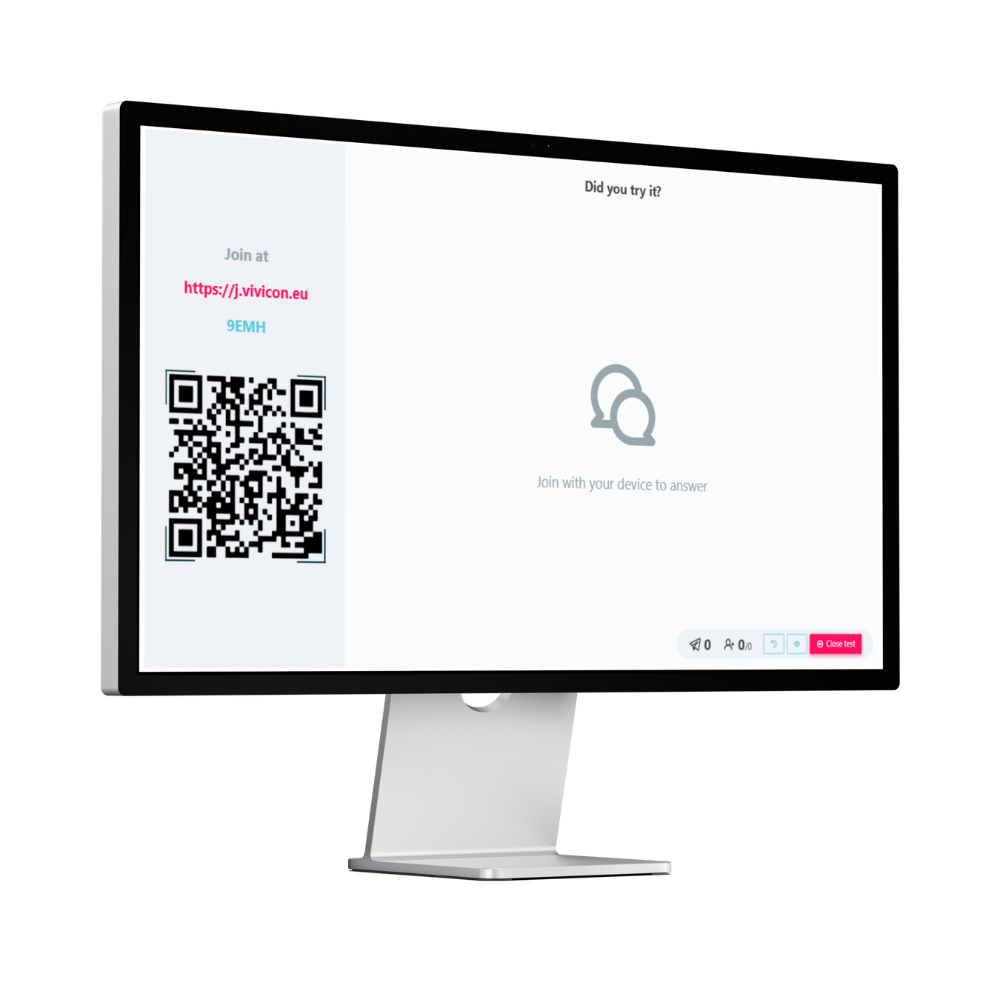
Participants can join from their own devices by:
- scanning the QR code,
- or entering the join code.
Joining information remains available during the presentation, so participants who arrive late can still join.
2. Audience participation
Participants can sign in using:
- Google,
- Microsoft,
- Apple ID,
- or sign in with account
You can also allow anonymous participation.
When anonymous participation is enabled, responses are not linked to individual participant identities.
💡 Tip: If you need to identify participants later – for example, when using a Survey as an attendance sheet – do not enable anonymous participation.
3. Managing responses and results
3.1. Opening and closing responses
Every interactive slide allows you to control when participants can submit answers.
When you’re ready to stop accepting responses, close the interactive slide.
If you want to allow more participants to answer, you can reopen it.
You can close and reopen the response collection during your presentation.
3.2. Checking participation
For each interactive slide, you can see:
- how many participants have joined,
- and how many have already submitted an answer.
3.3. Showing results
You can control when your audience sees the results.
Keeping results hidden while participants are answering can help prevent previous responses from influencing their choices.
Show the results when you’re ready to discuss them with your audience.